Changing a block's style used to raise the same question every time: is this going to change this block, or every block on my page?
Now the answer is on screen. Opening a block puts a Block Styles panel beside the editor, split into two groups:
- This block holds the settings that only ever apply here: size, alignment, animation, grid columns.
- All blocks holds your page-wide styles: color, corner, border, shadow, spacing, and the tactile setting.
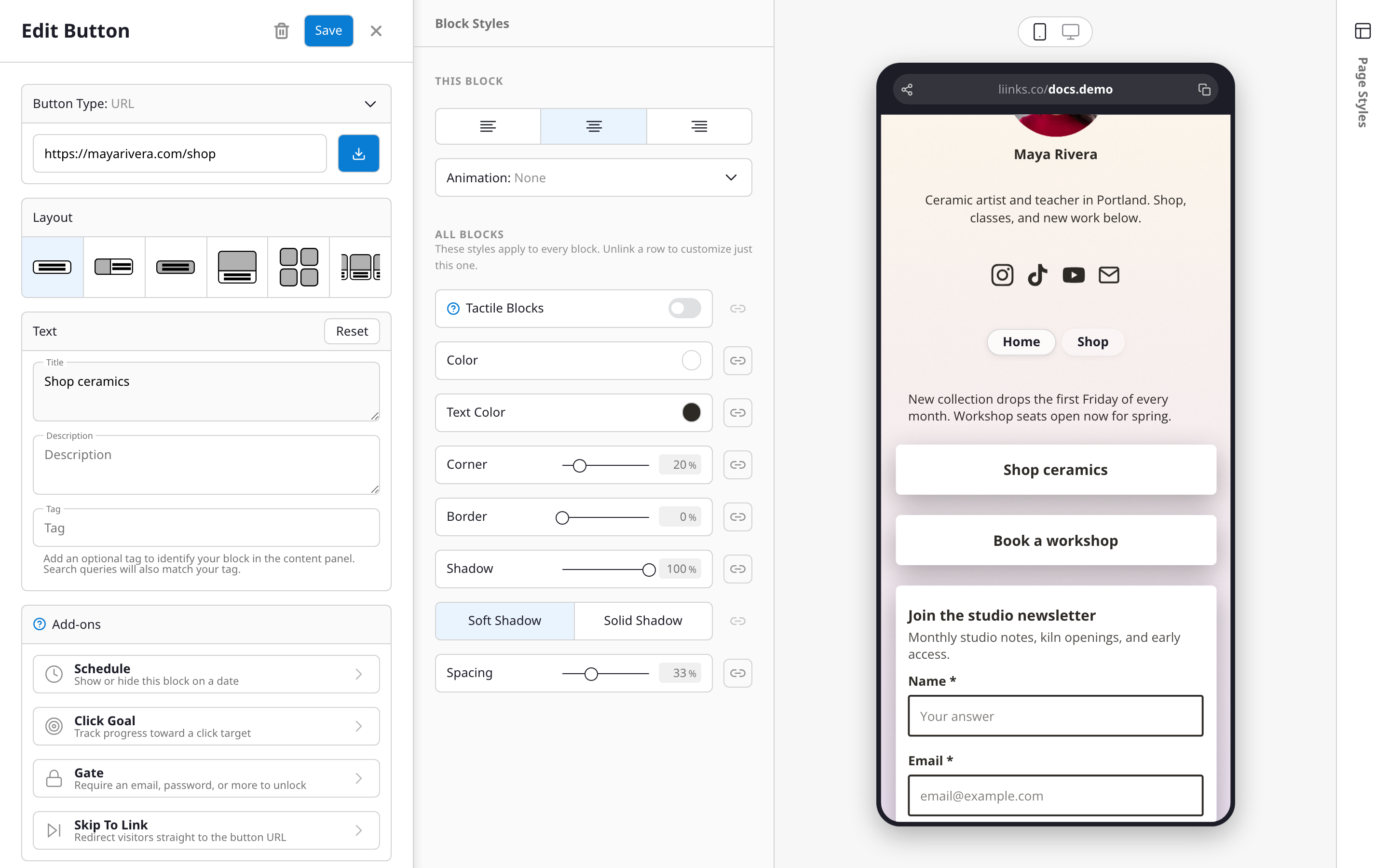
Every shared setting has a chain-link next to it:
- Chain intact means the setting is following your page style. Edit it and every block changes with it.
- Break the chain and that block keeps its own value, leaving the rest of the page alone. It starts from whatever the page style was, so nothing jumps.
- Link it back and the override simply drops away, returning the block to the page style.
Everything previews live while you work, and nothing is written until you hit Save. Cancel backs out of the whole session, style changes included, so you can experiment freely on a page you care about.
On a phone the panel becomes a drill-in from the block editor rather than a second column.
See Custom styles for the full walkthrough.