Liinks runs an MCP server. MCP, the Model Context Protocol, is the standard AI assistants use to connect to outside services, and connecting one to Liinks means you can describe a change in plain language instead of opening the editor. "Add my new podcast episode to my page." "Move the newsletter signup to the top." "What did people submit through my contact form this week?"
This is built on the same Public API and the same API keys, so anything the assistant does is something you could have done with a REST request yourself.
What you need
- A Liinks API key. API keys are available on all paid plans. Create one from Settings > API Keys in your admin dashboard, and copy it when it is shown. See Public API for the full walkthrough.
- An MCP-capable client. Claude, ChatGPT, Cursor, and a growing number of other assistants and editors support MCP.
Connect your client
The Liinks MCP server lives at https://www.liinks.co/api/mcp and uses the Streamable HTTP transport. Most clients let you add a server by pasting a small block of JSON:
{
  "mcpServers": {
    "liinks": {
      "type": "http",
      "url": "https://www.liinks.co/api/mcp",
      "headers": {
        "Authorization": "Bearer liinks_live_<your-token>"
      }
    }
  }
}
Replace liinks_live_<your-token> with your own key, keeping the word Bearer and the space in front of it.
Where that JSON goes depends on the client. Look for a settings screen named MCP servers, Connectors, or Integrations, and check your client's own documentation for the exact file or field. Whatever the wrapper looks like, Liinks only needs those two things: the endpoint address and the authorization header.
Once it is connected, ask the assistant to list your Liinks profiles. If it comes back with them, the key and the connection are both working.
What the assistant can do
The server exposes twelve tools. Your assistant picks the ones it needs, so you do not have to name them, but it is worth knowing the shape of what you have handed over.
Reading
list_profileslists the profiles your key can manage.get_profilereads one profile in full: its fields, styles, social icons, blocks, and pages.
Editing the profile
update_profilechanges your display name, bio, tagline, or slug.set_styleschanges the theme: colors, fonts, background, and layout.set_socialsreplaces the row of social icons.
Editing blocks
add_blockadds a link, text, divider, folder, or media block.update_blockedits a block, or hides and shows it.remove_blockdeletes a block.reorder_blockssets the top-to-bottom order of blocks on a page.
Reading your data
list_form_submissionsreads form submissions, newest first.list_subscribersreads email subscribers, newest first.
Checking the result
screenshot_profilerenders your live profile to images so the assistant can look at what it just did.
Block types that only the editor can create, such as forms and subscriber blocks, are not in that list. Add those from the editor, then let the assistant reorder or edit them like any other block.
Before you let it write
A few things are worth knowing up front.
Changes go straight to your live profile. There is no draft step and no preview. If you want to see something before it lands, ask for it: "show me what you would change first" works, and so does asking for a screenshot afterwards.
The assistant gets exactly what the key gets. It can reach the profiles that key can manage and nothing else. It cannot see your password, your billing, or your account settings.
You can cut it off instantly. Revoke the key from Settings > API Keys and the connection stops working immediately. Do that if you ever stop using a client, or if you pasted the key somewhere you are not sure about.
It shares your API rate limits. 120 requests per minute and 30 writes per minute, the same budget as the REST API. A long editing session will not come close, but a script running alongside it might.
The developer portal
liinks.co/developers is the reference page for all of this: the setup steps above, a REST quickstart, the error model, current rate limits, and the versioning policy. It is also where the machine-readable resources live, including the OpenAPI specification and the MCP manifest.
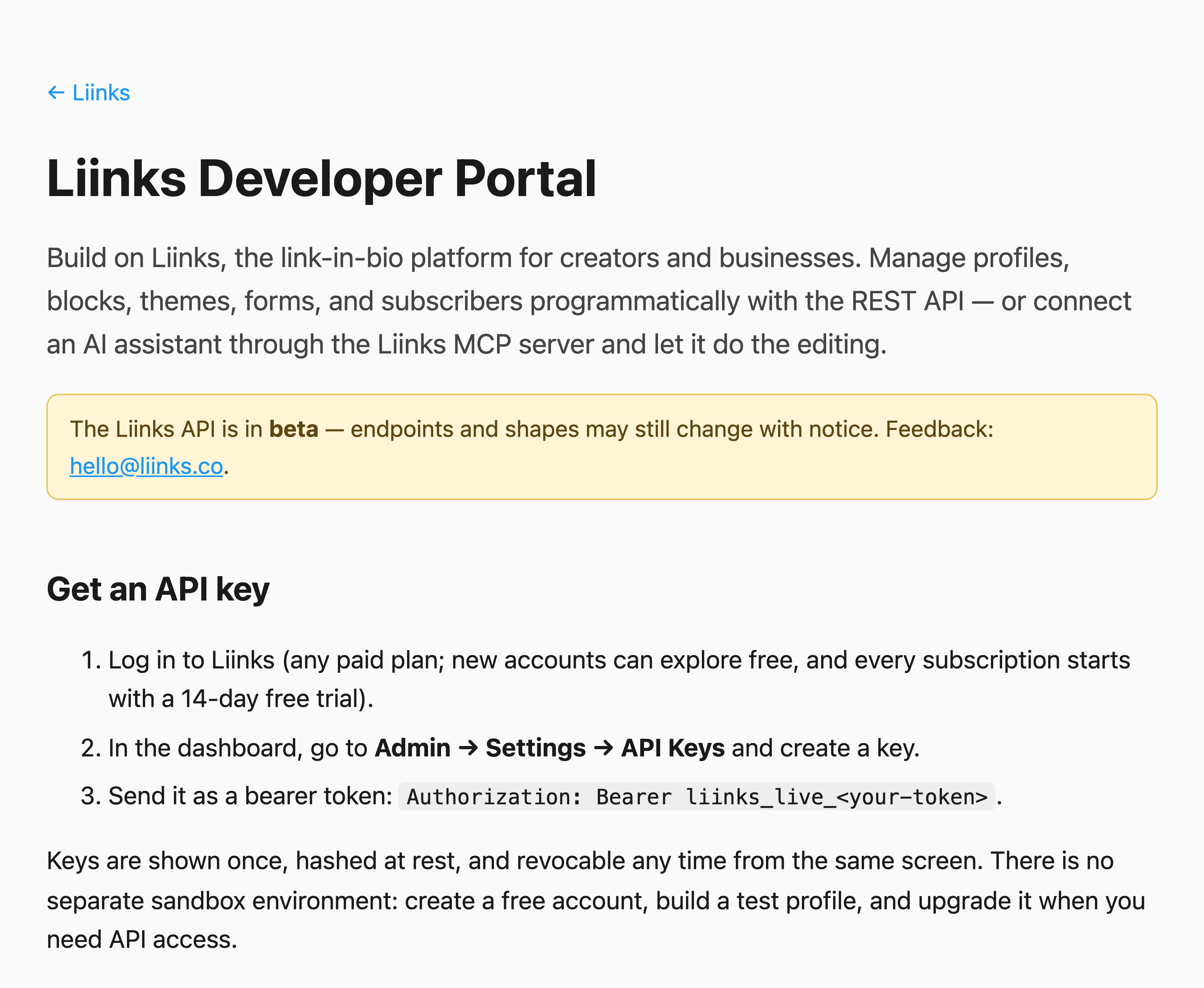
The API is in beta, so shapes may still change. We will give notice before anything breaks.
Need help?
If your client will not connect, or a tool does something you did not expect, contact our support team and tell us which client you are using.