When you paste a URL into the page editor, Liinks visits that page, reads its title, description, and image, and uses them to fill in your new Link block. That is the link preview. Most of the time it just works and you never think about it. This article covers the rest of the time.
How the preview is filled in
- In your admin, open the page editor and click Add Block.
- Paste the URL into the search box at the top of the menu.
- Liinks reads the destination page and pre-fills the Title, Description, and image for you.
Everything it fills in is a starting point, not a fixed value. Once the block exists you can edit the title and description freely, and swap the image for your own upload, an icon, an emoji, or a 3D icon. See Link Block for the full set of options.
When the preview is blank or wrong
A preview only works if the destination site lets Liinks read it. Some sites sit behind bot protection that answers automated visitors with a challenge page instead of the real content, and a few publish no preview tags at all. When that happens you get a title taken from the web address, no description, and no image.
There are two ways forward.
Fill it in yourself
This is the fastest fix and it always works. Type the title and description you want, and set the image manually. Nothing about a Link block depends on the automatic preview once the block exists, so a hand-written block behaves exactly like an automatic one.
Let Liinks through
If the page is on a site you control, you can let Liinks read it properly, which fixes the preview for anyone else linking to you as well.
When the first read comes back blocked or empty, Liinks retries from its own servers, identifying itself as:
Mozilla/5.0 (compatible; LiinksBot/1.0; +https://www.liinks.co)
Add LiinksBot to the allowlist in whatever protects your site: your CDN, your firewall, your security plugin, or your host's bot filtering settings. That is the whole fix, and there is nothing else you need to allow. If your setup can only allowlist by IP address rather than by user agent, contact our support team and we will send you the address to allow.
Checking what Liinks sees
Our free Open Graph Debugger answers this directly, and it needs no account.
- Open the tool and paste the address of the page you want to check.
- Click Debug.

- Read the What Liinks sees panel at the top of the results.
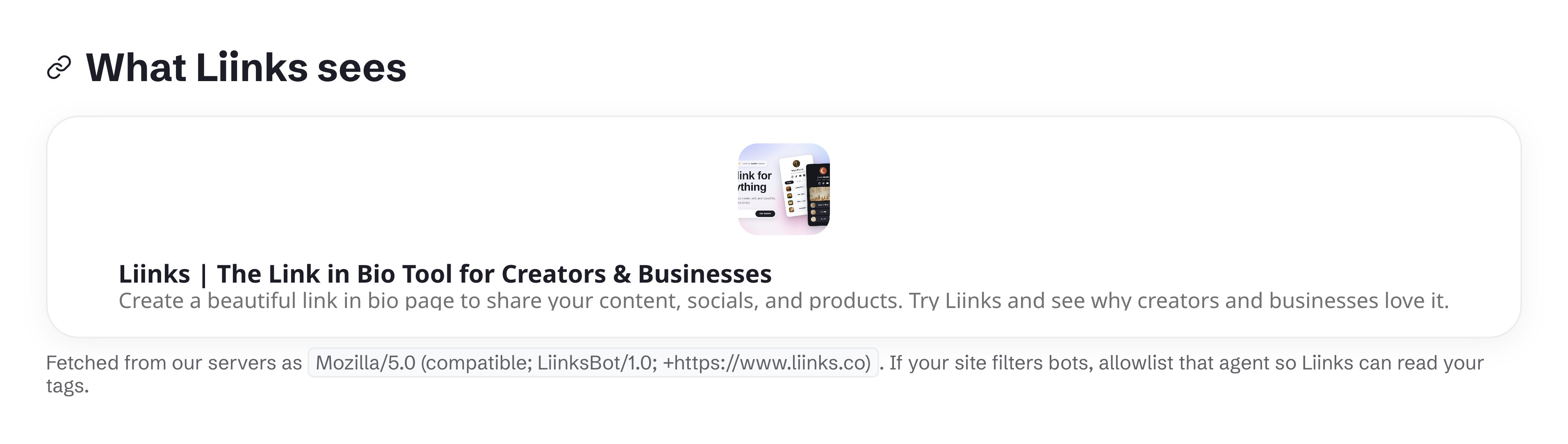
The panel fetches the page as LiinksBot and reads it with the same code that fills in your Link blocks, so a good result there means the allowlisting is genuinely working, not that the tool is being generous. The line underneath names the exact user agent it used, so you can copy the string straight into your allowlist.
Two things worth knowing about the panel:
- It reads the page itself, so it does not know about embeds. For services like YouTube, Vimeo, and Spotify, Liinks can resolve a thumbnail that is not in the page's own tags. A thin result here does not always mean a thin Link block for those sites.
- A block keeps the text it was created with. If the panel looks right but your existing block still looks wrong, the block is holding the older text. Edit its title, description, and image directly.
What the rest of the tool tells you
Below the panel, the debugger shows how your page will look when someone shares it on Facebook, X, LinkedIn, or Discord, plus a validation list of missing or malformed tags and a table of every tag found on the page. That part is about how other platforms render your link rather than how Liinks does. If you want a better share preview everywhere, work through the validation warnings and check again.
For the share image itself, the Open Graph Image Generator creates a correctly sized one you can add to your site.